Wondering “why is my mobile data not working on my Samsung? Discover why mobile data is not working on your Samsung device and learn effective troubleshooting steps to fix the issue quickly.
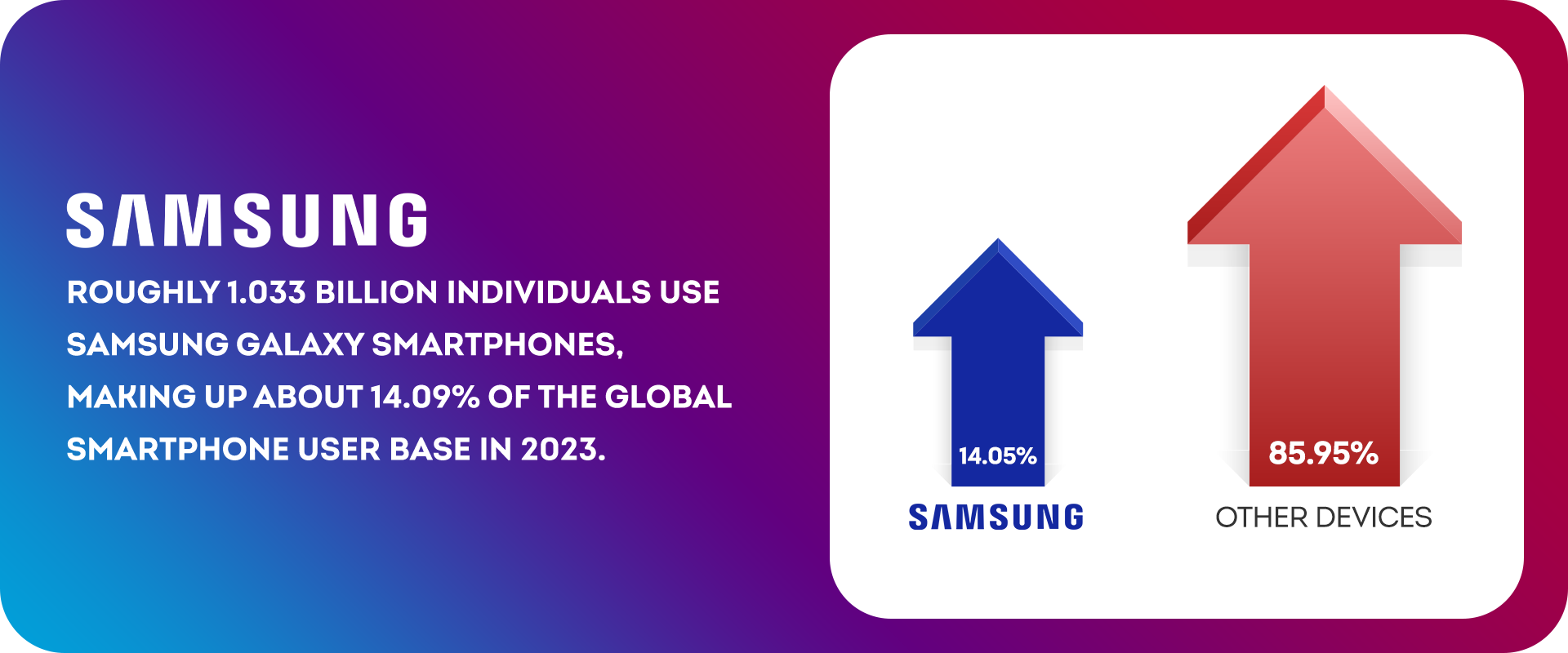
Roughly 1.033 billion individuals use Samsung Galaxy smartphones, making up about 14.09% of the global smartphone user base in 2023. These users use their Samsung mobile devices to stay connected, informed, and entertained. However, there are moments of frustration when they encounter the baffling situation of mobile data not working on their Samsung devices. If you’re currently grappling with this issue, don’t worry – you’re not alone. This comprehensive guide will delve into the potential reasons behind this problem and provide you with an array of practical solutions to get your Samsung device back online and functioning flawlessly.
Why Is My Mobile Data Not Working on My Samsung Device?
Mobile data disruptions can range from mildly inconvenient to highly exasperating, especially when your device is a crucial part of your daily routine. Here’s a closer look at some of the primary culprits behind this issue:
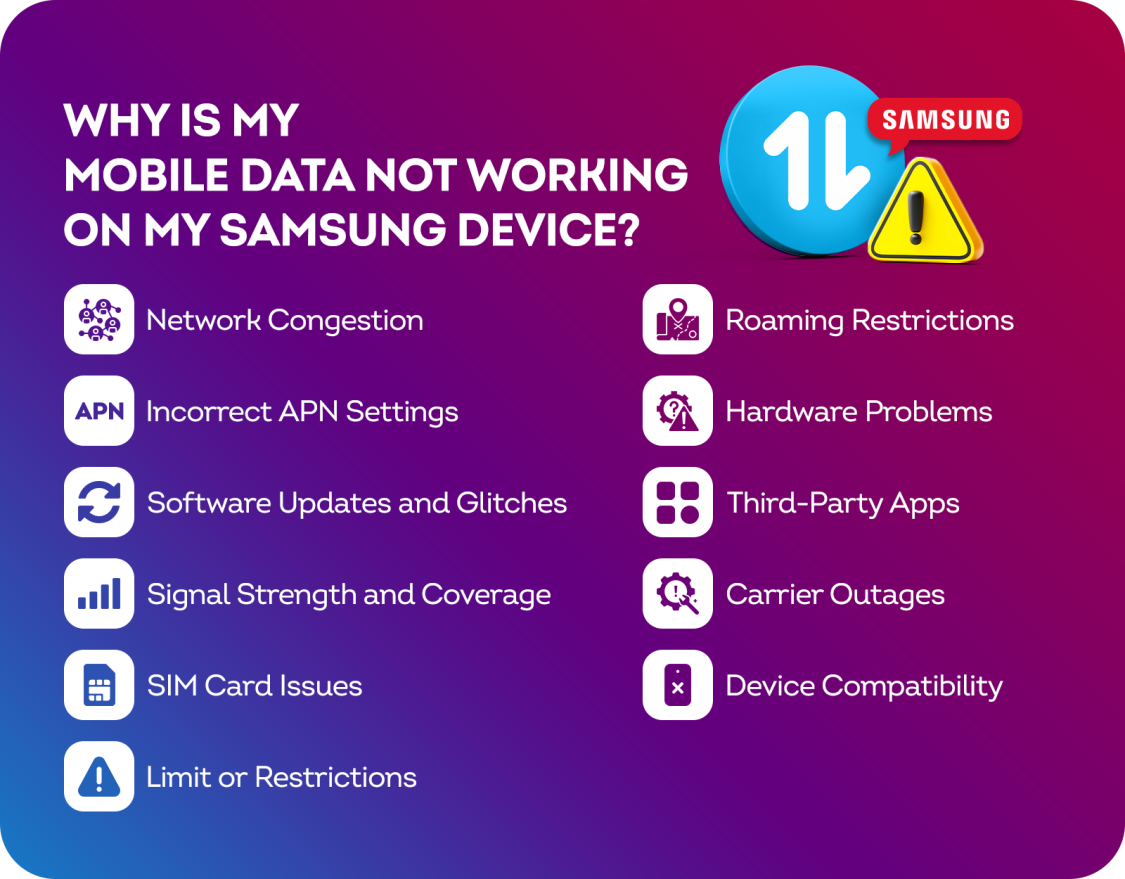
- Network Congestion: In densely populated areas or during peak usage times, mobile networks can experience congestion. This congestion might lead to slow or completely unavailable data connections, causing frustration for Samsung users. If you’re experiencing sluggish data speeds, it’s worth being patient as the network stabilizes.
- Incorrect APN Settings: Access Point Name (APN) settings are pivotal for establishing a seamless connection between your Samsung device and your carrier’s network. If these settings are incorrect or outdated, your mobile data may falter. To ensure your APN settings are correct, it’s recommended to verify them with your carrier’s provided configuration details.
- Software Updates and Glitches: Software updates are intended to bring improvements, features, and bug fixes. However, they can sometimes introduce unforeseen glitches that disrupt your device’s functionality. If you’ve recently updated your Samsung device and subsequently encountered mobile data issues, it’s possible that a software-related problem is the cause.
- Signal Strength and Coverage: The strength of your mobile data connection hinges on two main factors: signal strength and network coverage. If you’re in an area with weak signal reception, your data connection could be intermittent or non-existent. Physical obstructions, such as buildings or geographical terrain, can also weaken your signal and impact connectivity.
- SIM Card Issues: A faulty or improperly inserted SIM card can lead to mobile data problems. Ensure your SIM card is securely inserted and functioning properly.
- Limit or Restrictions: Some carriers or device settings might impose data limits or restrictions. If you’ve reached your data limit or enabled data-saving features, it could affect your mobile data usage.
- Roaming Restrictions: If you’re in a different region or country and haven’t enabled international roaming, your mobile data might not work. Check your device’s roaming settings.
- Hardware Problems: In rare cases, hardware issues like a malfunctioning antenna or radio component could impact your mobile data connectivity.
- Third-Party Apps: Certain apps might interfere with your mobile data connection due to conflicts or excessive data usage. Try troubleshooting by disabling apps one by one.
- Carrier Outages: Temporary outages or maintenance from your carrier could lead to disrupted mobile data services.
- Device Compatibility: Older devices might not support the latest network technologies, causing data compatibility issues.
Effective Troubleshooting Steps for Samsung Devices
Armed with an understanding of the potential issues, let’s discover a range of actionable steps to tackle the problem of mobile data not working on your Samsung device:
- Assess Signal Strength: Begin by checking the signal strength indicator on your Samsung device. If it registers low, consider repositioning yourself to an area with stronger reception. For those indoors, moving closer to a window or an open space might enhance your signal.
- Scrutinize APN Settings: Navigate to your device’s settings menu, locate “Connections,” and then access “Mobile Networks” or its equivalent. Compare your APN settings with those provided by your carrier. Update the settings if discrepancies are found.
- Embrace the Power of a Restart: At times, a simple restart can work wonders. Power off your Samsung device, wait a few seconds, and then power it back on. This can help refresh network connections and eliminate minor glitches that might be affecting your data.
- Deactivate Data Saver Mode: If you’ve activated the Data Saver mode on your device, it could be limiting background data usage to conserve data. Temporarily disabling this mode might enhance your data connectivity and allow you to identify if it’s the cause of the issue.
- Seek Out Software Updates: Ensure your Samsung device is operating on the latest available software version. Navigate to “Software Update” within the settings and install any pending updates. These updates frequently include bug fixes that can potentially resolve mobile data issues.
- SIM Card Troubleshooting: To address SIM card issues, follow these steps:
- Power down your device.
- Gently extract the SIM card and inspect it for damage or debris.
- Reinsert the SIM card securely.
- Power on your device and verify if mobile data is functioning.
This simple process can often resolve connectivity problems arising from faulty or improperly inserted SIM cards.
- Manage Data Limits and Restrictions: To effectively manage data limits and restrictions on your device, follow these steps:
- Open your device’s settings.
- Navigate to “Network & Internet” or “Connections.”
- Find “Data usage” or similar.
- Manage Roaming: If your carrier provides the roaming feature, but it’s not active on your device, you won’t be able to use the data, so follow these steps:
- Access your device’s settings.
- Go to “Network & Internet” or “Connections.”
- Locate “Mobile networks” or “Roaming.”
- Enable international roaming if abroad.
Opting for international roaming might seem like a quick fix for data abroad, but it often comes with hefty costs. A smarter alternative? Numero eSIM app’s affordable data plans for 150+ countries. Get connected before your trip without breaking the bank! Follow the instructions in this tutorial to purchase and activate data plans from Numero.

- Manage Hardware Problems: Follow these steps to manage hardware problems:
- Restart your device.
- If the issue persists, perform a soft reset (if applicable).
- If unresolved, seek professional repair through the manufacturer or authorised service center.
- Resolve Third-Party Apps Issues:
- Reboot your device.
- Enter safe mode (varies per device, usually hold power + tap “Restart” while holding volume down).
- Test mobile data in safe mode. If operational, isolate the problematic app.
- Uninstall recently added apps individually to identify the issue.
- Check Carrier Outages:
- Visit your carrier’s official website or social media for outage notices.
- Contact your carrier’s customer service for network status information.
- Check Device Compatibility:
- Research your device’s specifications and supported network technologies.
- Consult your carrier to confirm compatibility with their latest network features.
- If incompatible, consider upgrading to a newer model.
Frequently Asked Questions (FAQs):
Is contacting customer support the only option for resolving mobile data problems on my Samsung device?
While reaching out to customer support is a viable option, many mobile data issues can be successfully resolved through the troubleshooting steps outlined in this guide. These steps are designed to empower you with solutions that you can implement independently.
Are mobile data problems exclusive to Samsung devices?
No, mobile data issues can arise on various devices. However, the solutions presented here are tailored specifically to Samsung devices, ensuring a targeted approach to troubleshooting.
Conclusion
Maintaining mobile data connection on your Samsung device is paramount for staying connected, and informed. If you’re grappling with mobile data issues, this comprehensive guide equips you with the knowledge and solutions needed to overcome the challenge. By diligently following the steps provided, you’ll be well on your way to enjoying uninterrupted mobile data connectivity on your Samsung device once more. In the rare instance that the issue persists, remember that customer support is readily available to offer further assistance. Stay connected, stay informed, and keep your Samsung device operating at its optimal best!